Inventory Features
Part of POS inventory features
Using a POS to identify stock discrepancies
Compare the right item and stock state, review count differences, trace movements and record a discrepancy without guessing its cause.
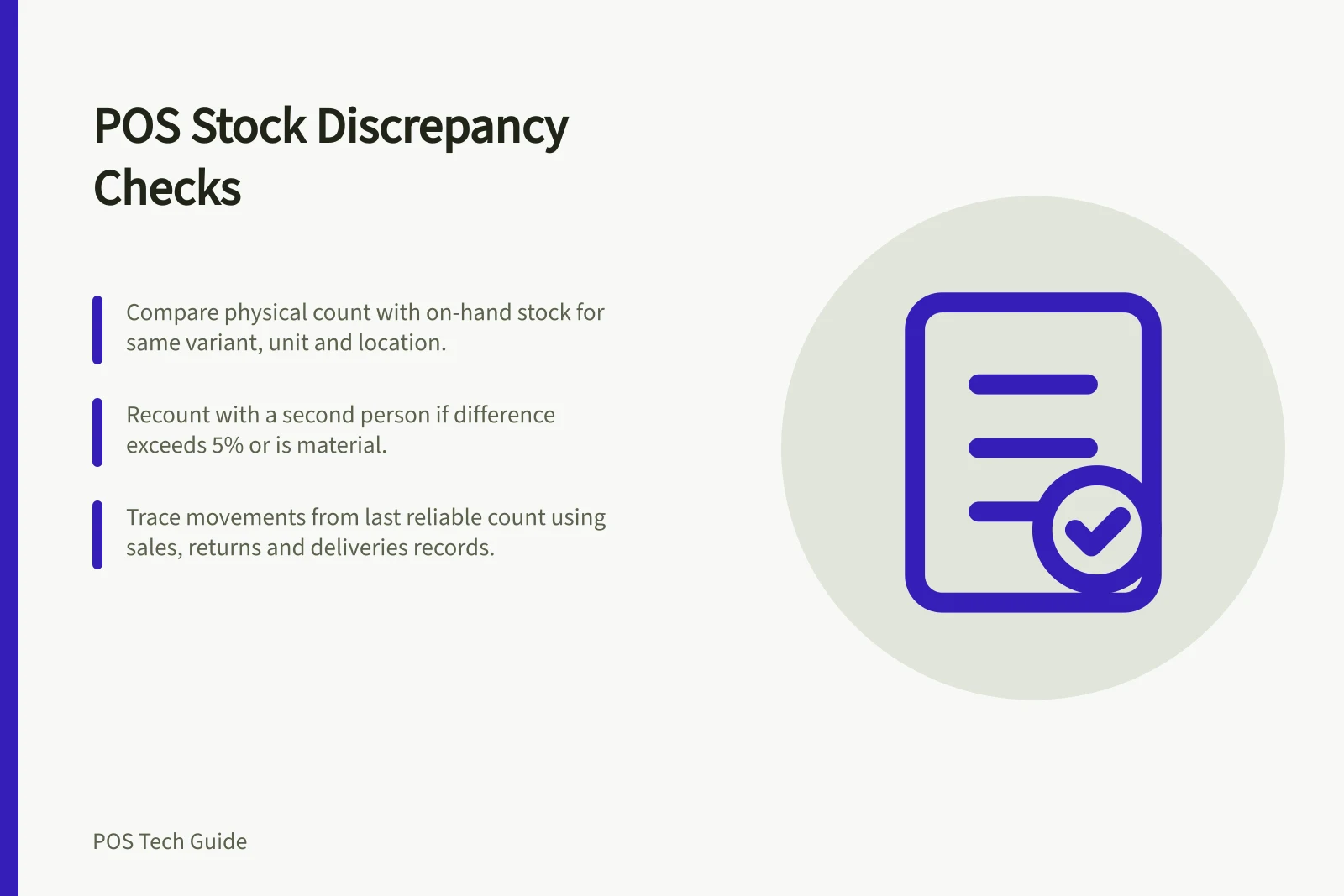
To investigate a stock discrepancy, compare a physical count with the recorded quantity for the same variant, selling unit, location and stock state. Then review movements since the last dependable count. A difference shows a mismatch between goods and records; it does not reveal the cause.
Make the comparison fair
Confirm the item or barcode, selling unit and location. Ten singles cannot be compared with ten packs. Note whether the count includes back room stock, damaged units and units set aside for orders, then compare it with the system figure for those same goods.
In Shopify, on hand includes available, committed and unavailable units physically at the location; available alone is narrower. Shopify instructs staff using Quick count to count on-hand inventory.
Record the count time: sales, returns and deliveries during counting can make an expected figure stale. In Shopify POS Pro, a stock count is a scheduled count created in the admin and reviewed before any inventory quantities change.
Recount before correcting
Start with variants needing attention, such as an item staff cannot find or one with repeated corrections. Count every place the selected location holds that variant. Have a second person recount a material difference before approving a change.
The count path matters. Square warns that approving a full count sets uncounted variations to zero, while a cycle count leaves items outside it unchanged. Its documented variance report shows count differences and details under the listed Retail Plus or Premium and retail-mode conditions.
Shopify planned POS counts require POS Pro at the location and hold results for admin review; Quick count submits quantity changes directly. Check which path was used before interpreting the record.
POS Count Methods: Quick Count vs Scheduled Count (Shopify POS Pro)
- Quick Count
- Directly submits changes; faster but less oversight
- Scheduled Count (POS Pro)
- Holds results for admin review; better for accuracy and audit trails
Trace the movements
Work forward from the last reliable count. Check completed sales and returns, goods received, transfers if relevant, and manual adjustments. Match the variant, quantity, location and time at each step.
Difference observed / First records to inspect
- Physical count is lower than recorded on-hand stock
- Recount; check sales, damage and stock used without an entry.
- Physical count is higher
- Check deliveries, reversals and whether variants were mixed.
- Difference follows a delivery
- Compare the goods received with the receiving entry.
- Repeated manual corrections
- Review adjustment history and the process that produced the entries.
These checks narrow the investigation; none proves theft or another cause on its own.
Square's documented stock-adjustment history can be filtered by product, location, date and reason on its listed Plus or Premium subscriptions. Shopify's tracked-product history identifies the staff member, app or sales channel behind an adjustment. Its product or variant view covers 180 days, with a separate report identified for older adjustments.
Inventory Adjustment Tracking: Features by Platform
- Square – Stock Adjustment HistoryFilterable by product, location, date, reason (Retail Plus or Premium only)
- Shopify – Adjustment HistoryTracks staff member, app or channel; covers 180 days; older data in separate report
Record the outcome
Keep the expected and counted quantities, recount result, records checked, any cause established, correction made and follow-up owner together. If the cause remains unknown, say so. Use a count or correction reason that describes the action taken. Investigate recurring differences without rewriting the original entry as though its cause had been known.