System Selection
Part of POS integrations
Connecting POS sales to bookkeeping software
Define the POS-to-books entry, compare Square connections with Xero and MYOB Business, and check the first synced periods without duplicating sales.
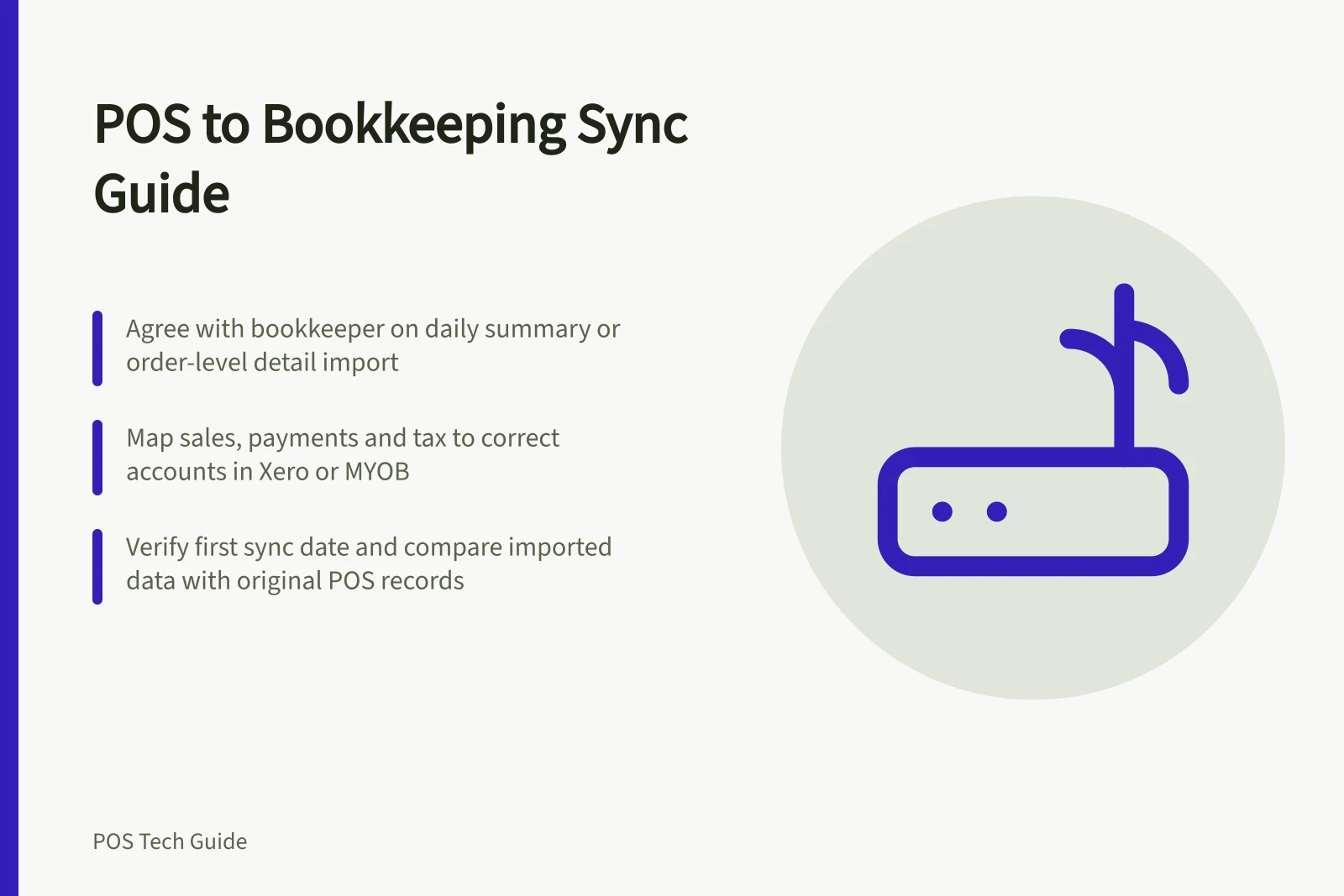
Before connecting POS sales to bookkeeping software, agree with the bookkeeper whether a daily summary or order-level detail should arrive. Map sales, payment types and tax to the intended accounts, set the first sync date, then compare imported periods with the source POS records. A connection screen does not show that the books are correct.
Define the entry and reporting day
A POS order records what was sold; a payment record shows how the customer paid. A later bank deposit may combine payments after fees or adjustments. Decide which record creates the bookkeeping entry, and how to match the others without counting a sale twice.
Set the company time zone and reporting cut-off. Agree how refunds, cash, card, gift cards, tips, surcharges and discounts should appear where the business uses them. Ask the bookkeeper to review tax mapping; do not infer accounting treatment from a connector's default labels.
Compare documented Square connections
Square and Xero: Xero says its connection creates a daily summary sales invoice for the previous day's Square transactions. The import can include a transaction-level breakdown, but that does not necessarily mean a separate invoice for every order. Bank-feed reconciliation rules still need configuring; Xero identifies Amaka as the integration builder and support provider.
Square and MYOB Business: MYOB documents a daily Square sync through Amaka. Setup supports summarised sales information or detailed entries for each order, with account mapping. MYOB says you can back-date synchronisation to generate sales summaries for previous sales. It also says some additional integrations and advanced Amaka features may carry a fee; confirm current terms for the intended account.
Compare the actual entry format, the detail the bookkeeper needs, error support and the selected connector's cost.
Start and check the feed
Record the last period entered manually and the first period the connector should import, and save an untouched POS report for that boundary. If history is backfilled, identify periods already recorded so they are not posted again. Limit who may change start dates and account mappings.
For the first imported period, use matching location, time zone and period filters. Compare sales, discounts, refunds, tax and payment categories that apply to the business, and trace a few orders to the imported detail or summary calculation. Inspect processor activity and the bank feed separately: a matching deposit does not prove each sales line was classified correctly.
Keep missing days, duplicate entries, wrong tax codes and unexplained fees visible. Correct the mapping or source with the bookkeeper and recheck the affected period. Record whether the connector can repair an entry or whether a supported manual correction is needed.