Payments & Reconciliation
Part of POS integrations
Testing a delivery platform integration
Check the live menu, outlet mapping, order handoff and kitchen output before relying on a POS delivery connection.
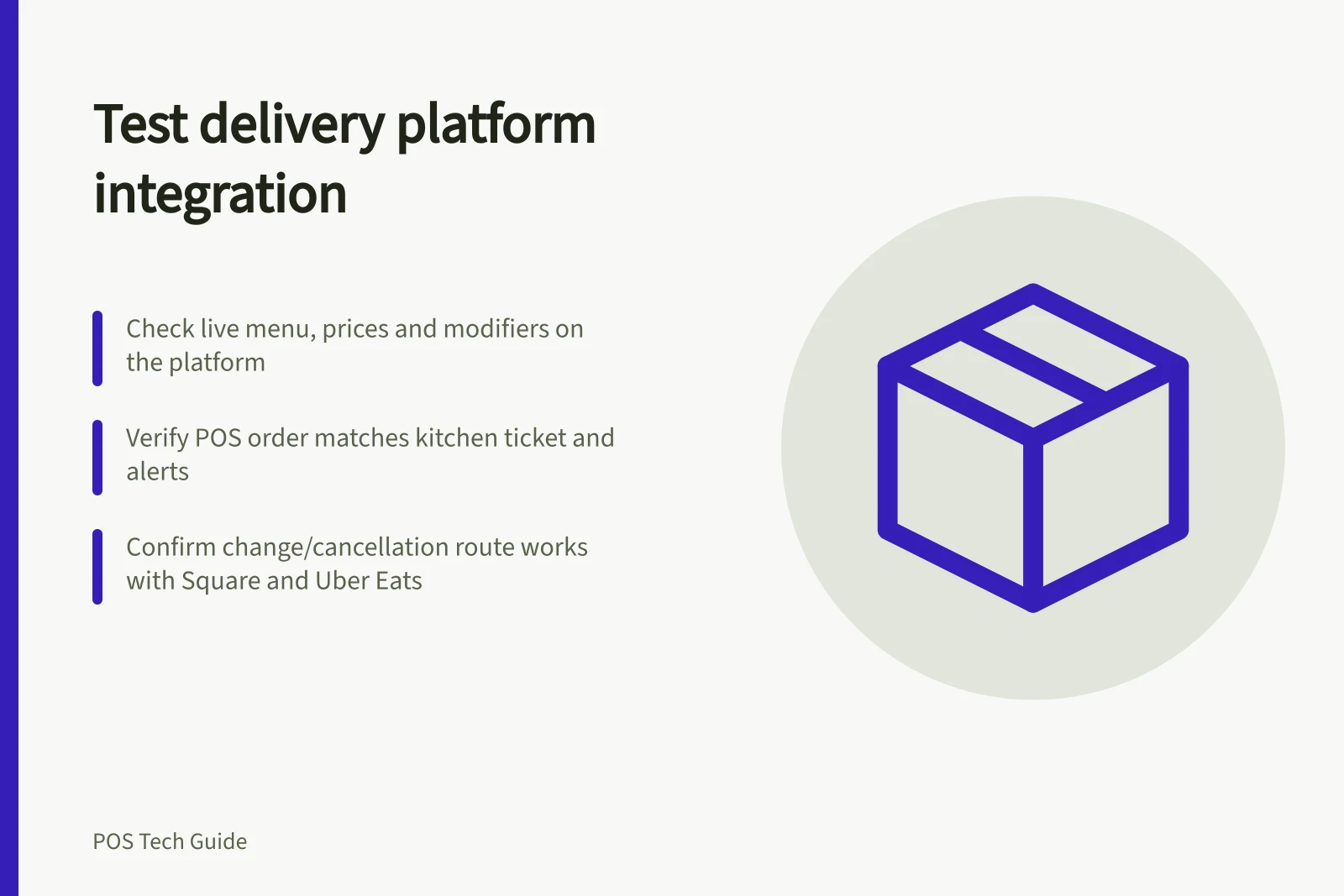
Test a delivery integration by following a controlled order from the customer-facing listing through the POS to the preparation team. Check the live menu first, then order details, alerts, kitchen output and the supported change or cancellation route. A correct POS menu alone does not prove the platform listing or kitchen ticket is correct.
Record the setup being checked
Note the platform account, outlet, mapped POS location, app mode, menu, hours, price rules and preparation devices. Tell the shift lead when a controlled order will be placed. Use a permitted ordering route and account for any real charge, food preparation or platform fee it creates.
The connection supports Square for Restaurants and Square Point of Sale sellers with full-service, quick-service or bar mode enabled. Check that the Square location assigned to the Uber Eats integration is selected. At least one menu must exist in the Square account before activation, and the intended menu should be created before setup.
Square recommends activating while closed because activation disconnects another Uber Eats integration already on that Square account.
Inspect the live listing
Check the outlet, hours, available items, prices and modifiers in the platform view. Include an item intended to be unavailable.
Square says menu, price and item-availability changes sync to its Uber Eats connection, but its troubleshooting guide also identifies menu membership, mapped location, sales-channel and fulfilment settings as possible reasons an item is missing. Uber Eats can reorder items within a subcategory, so display order alone is weak evidence of a sync fault.
Compare the platform item price with the configured delivery or pickup rule, and keep platform charges separate when comparing a customer total with the POS record.
Platform vs POS Order Details
- Outlet
- Must match between Uber Eats and Square POS location mapping
- Item Availability
- Check if an intentionally unavailable item appears on the platform listing
- Prices
- Compare platform price with configured delivery/pickup rule in Square
- Modifiers
- Ensure modifier wording and pricing are identical in both systems
- Fulfilment Settings
- Verify pickup/delivery settings align with menu configuration in Square
Follow one order to preparation
Use an order with a standard item and a modifier; add multiple preparation stations only if the venue uses them. Compare the platform and POS references, outlet, item quantities, modifier wording, relevant prices and requested time.
Check the front-of-house alert and the ticket or display at each relevant station. Square says connected Uber Eats orders appear in Order Manager and configured kitchen outputs. Alerts and printing have separate settings, so a missing chime and a missing order call for different checks.
Check how the actual connection handles a change or cancellation. Square’s Uber Eats connection does not share driver status or support direct customer contact and substitutions inside Square; the merchant portal handles customer contact and substitutions. A separate Square Online partnership-order route requires cancellation on the originating ordering platform. Confirm which route the venue uses before giving staff a status instruction.
Record results and fallback
Mark each step observed, failed or not checked. Keep both order references, outlet, time, devices and owner.
If an order is on the platform but absent from the POS, confirm its status before manual entry so an automatic retry does not produce a second preparation ticket. Uber advises merchants with POS integration order issues to contact the POS integration provider and describes manual POS entry as an interim option.
Repeat the affected check after correcting a menu, mapping, alert or printer setting. The venue can rely on the route only after a real incoming order reaches the staff who must prepare it and exceptions have an owner.
Key Integration Metrics to Verify
- Cancellation Handling Route
- Confirmed: via platform (Uber Eats) or POS depending on setup
- Manual Entry Used?
- Only as interim solution until sync resolved
- Staff Preparedness
- Verified with real order reaching preparation team