Hardware & Peripherals
Part of POS for restaurants and cafés
Routing orders to kitchen printers or displays
Kitchen routing should send each item to the team that prepares it, with clear updates when the order changes.
Route each menu item to the station that prepares it, then check that the order reaches the right printer or display. Configure one route at a time and test it before service; a successful payment does not confirm that the kitchen received a usable ticket.
Map stations and sources
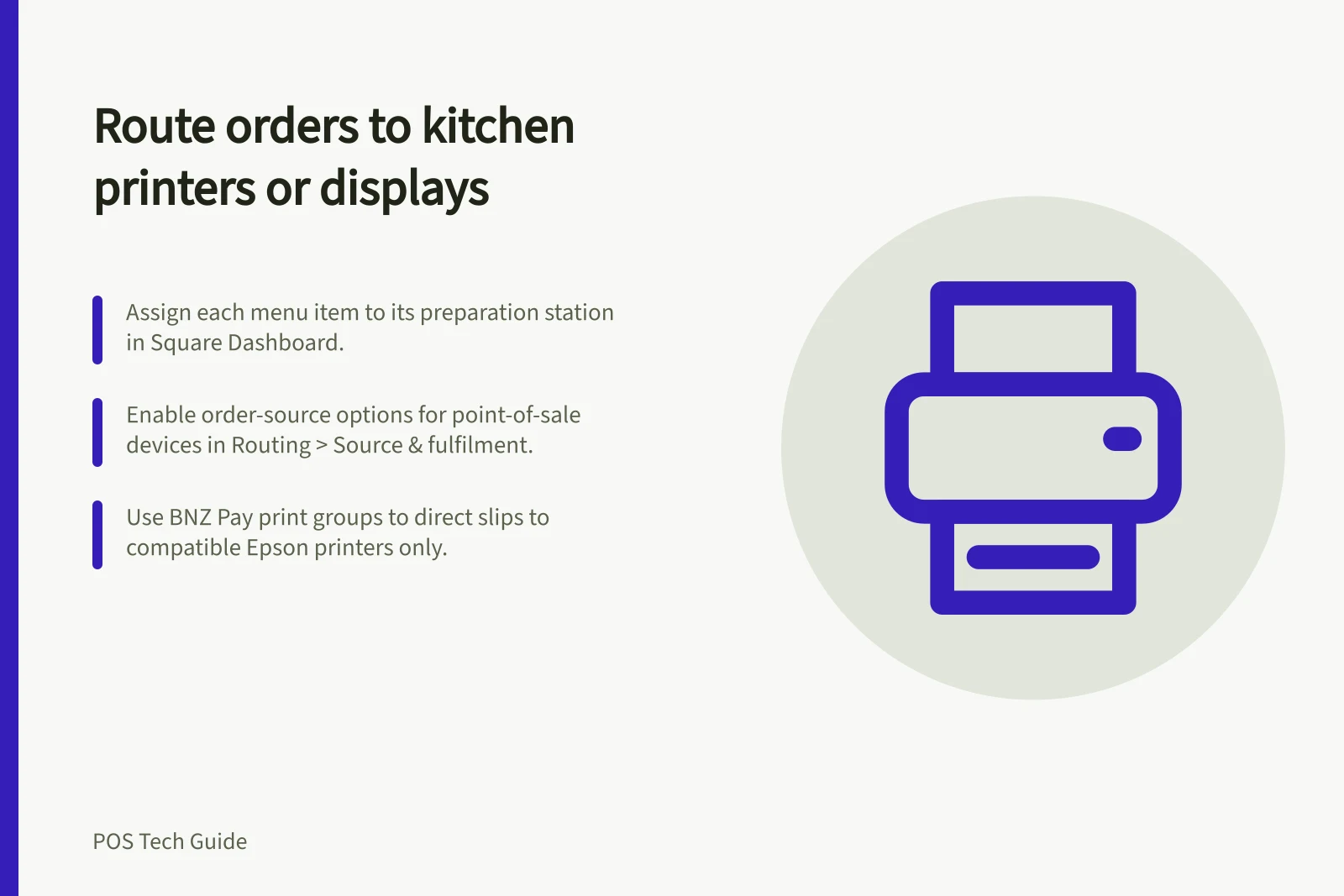
List the stations you use, such as bar, hot kitchen, cold prep and packing. Assign each menu item to its destination and check which order sources—such as online, kiosk and point of sale—should reach each station.
In Square Dashboard, go to Settings > Device Management > Devices, select the kitchen display, then choose Manage beside Assigned modes. Select Routing > Source & fulfilment, turn on the relevant order-source options, choose Edit beside Receives orders from, enable the point-of-sale devices that should send orders, then select Save.
In Square Dashboard, confirm that each item is assigned to a kitchen routing category. In the Square KDS app, confirm the kitchen routing category settings. Also check that the display is signed in to the correct location using its assigned device code and nickname; unused Square device codes expire after 48 hours.
For BNZ Pay, open More > Printers and create a print group from the Printer Configuration menu. Name the group, create items and add items by category; use the groups to direct order slips to the appropriate printer. BNZ Pay states that only Epson printers are currently compatible.
BNZ Pay can find printers over Bluetooth or Wi-Fi. For Wi-Fi, the device running BNZ Pay and the printer must be on the same network; its guidance also says to check that the router allows devices on the network to communicate.
Wsoft lists a Kitchen Printer WIFI with USB, LAN and Wi-Fi interfaces, and a Kitchen Printer LAN with USB and LAN interfaces. Both are thermal printers with 80mm paper width and an auto cutter; the WIFI model also has an audio and visual alarm. Check compatibility with your POS before connecting a printer.
WaiterOne KDS turns an iPad or iPhone into a kitchen display. WaiterOne supports kitchen and bar ticket routing, and lists Epson, Star Micronics, Citizen and AirPrint-compatible printers, including printers using Epson-compatible ESC/POS modes.
Compatible Printers for BNZ Pay and WaiterOne KDS
- BNZ Pay
- Epson printers only (via Bluetooth or Wi-Fi)
- WaiterOne KDS
- Epson, Star Micronics, Citizen, AirPrint-compatible; ESC/POS mode support
Key Facts About Kitchen Display Systems (KDS)
- Square KDS requires valid device code and nicknameUnused codes expire after 48 hours
- BNZ Pay supports only Epson printersVia Bluetooth or Wi-Fi
- WaiterOne KDS uses iPad or iPhone as displaySupports kitchen and bar ticket routing
- Wsoft printers have auto cutter and 80mm paper widthAvailable in WIFI and LAN models
Make ownership clear
Send a controlled test order to check which printer or display receives it. Add a modifier and cancel an item, then check what each station sees and whether the system prints or displays a duplicate; set a clear staff procedure for handling the result.
For an example of a kitchen display workflow, NaviPartner KDS moves a prepared order from Order Taken to In Progress when staff double-click it. Its status colours indicate timing: green is within the expected timeframe, yellow is taking longer and red is taking too long.
If a Square KDS misses an order, check its device code, order routing, item category assignments and category settings. Restart the Square KDS app and test the connection between the point-of-sale device and the app; make these checks outside peak service where possible.
Plan a fallback for network interruptions. NextOrder describes offline order entry that continues during a 4G dropout or dead router: tickets queue locally, print from the device and reconcile when the connection returns.
Assign someone to update station rules when the menu changes. At the start of a shift, send a test ticket and confirm receipt; review missing or misrouted tickets and correct category mapping or device settings.