System Selection
Part of POS product and price management
Updating prices across tills without inconsistencies
Plan one POS price change, check affected tills and displays, and resolve mismatches before charging customers.
Approve a single list of affected items and locations, change prices through the controlling catalogue, then check fresh carts at the tills that will sell them. Save the earlier values first. A price visible in admin is not proof that every customer-facing display is correct.
Define the release
Record item or variant IDs, old and new prices, affected locations and channels, and the intended effective time. Identify any approved local price differences so a broad edit does not erase them. If the change is temporary, document its end and whether it is a product-price change or a discount.
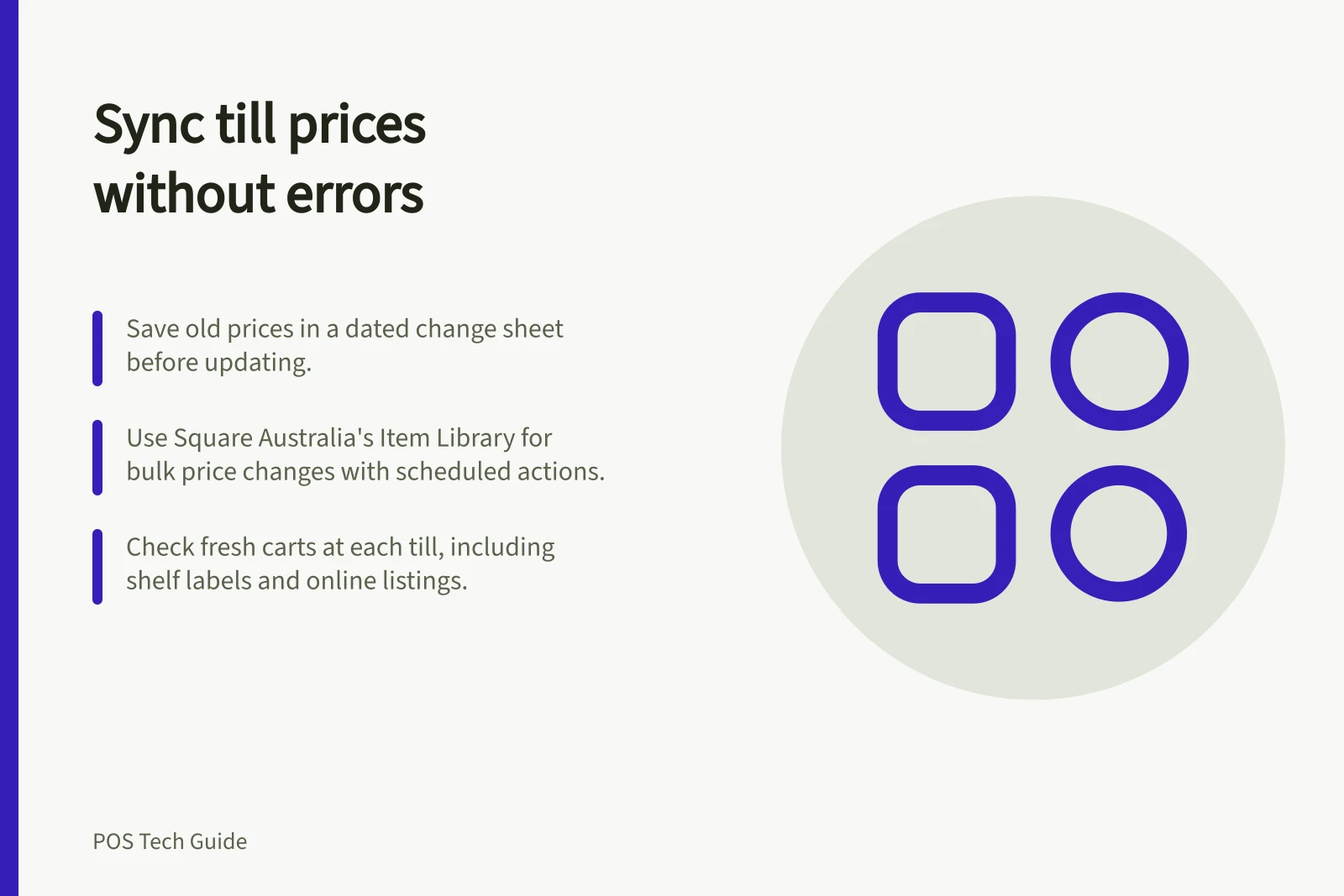
Give the list an approver and a person responsible for checking the result. Keep the previous values in a dated change sheet or supported export. If a price is wrong, staff need the intended value and affected locations, not a guess from an old shelf label.
Change the controlling record
Use the editing path available to the account. In Square Australia, bulk prices and a scheduled price action are in Item Library. The separate Stock overview bulk-price path requires Square Plus or Premium. Shopify supports product and variant price edits, bulk editing and sales-channel availability.
Avoid competing edits during the release. After the edit, inspect the affected records and the saved result before continuing.
Check customer-facing prices
At each affected till, open a fresh cart and scan or select a changed item. Check a variant, an unchanged item and any location-specific exception, then compare the cart with the approved list. Check shelf labels, customer-facing displays and online listings in the same change.
A cart opened before the update may need separate attention; check its displayed price before charging. For Shopify POS, the selected location and catalogue sync status are documented setup checks. Orders and inventory cannot sync with Shopify admin while the device is offline. Verify the displayed price when the device reconnects.
Australian price-display responsibilities matter when prices differ. The ACCC educates businesses about their price-display responsibilities, accepts reports and can investigate whether a business has broken the law about displaying prices. It doesn't give legal advice to businesses or resolve individual disputes about price displays.
Key Compliance and Operational Facts (Australia)
- ACCC OversightEnforces price-display laws; investigates breaches but does not resolve individual disputes
- Offline POS LimitationShopify POS cannot sync orders/inventory while offline; price updates may be delayed until reconnection
- Price Accuracy ResponsibilityA price visible in admin does not guarantee correctness on customer-facing displays
Resolve and close exceptions
For a mismatch, record the location, till, item, values shown and time. Correct the source or label, then repeat the fresh-cart check. If the cause is unclear, revisit the pre-update cart and the setup checks above.
Close the release when every affected station has a recorded result, or a named exception owner and clear counter instruction. Keep the approved price list and checks together so the business can establish where the new price appeared.