Payments & Reconciliation
Part of POS payments and reconciliation
Matching terminal payments to POS sales
Match card-terminal transactions to POS sales, investigate paid and unpaid mismatches, and avoid duplicate charges.
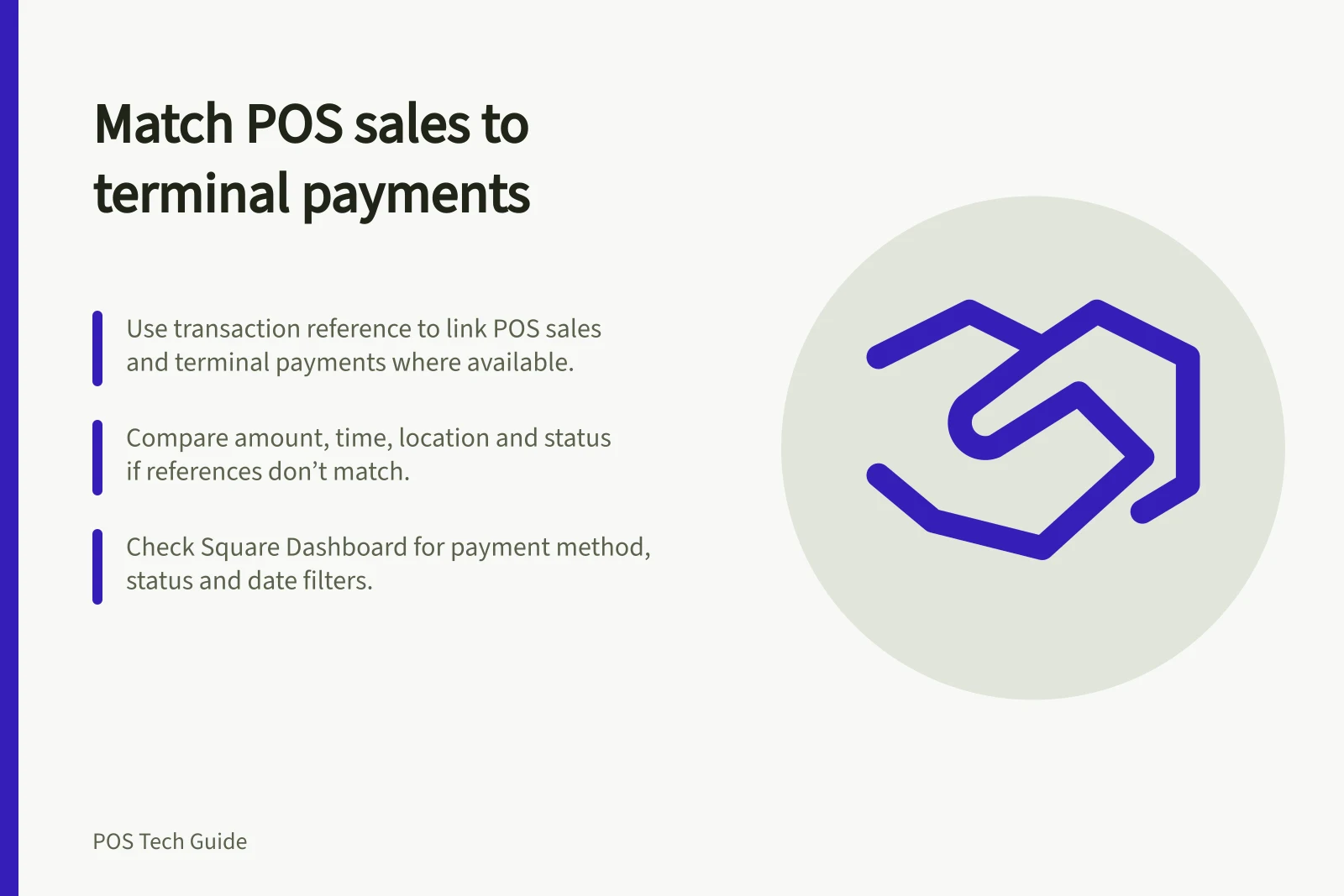
Match each terminal payment to its POS sale by transaction reference where both records provide one. Otherwise compare amount, time, location and status, then inspect the individual records. Equal daily totals do not prove every sale has the correct payment.
Identify where the card was charged
An integrated terminal may return its result to the sale. A standalone terminal processes payment separately, so staff must record the result in the POS. Establish which system charged the card before investigating a mismatch.
With a standalone terminal, confirm the charge in the provider's transaction record. A POS payment type alone does not confirm that the payment was processed.
The external provider's transaction record is needed to confirm the charge. Where the POS permits, retain a terminal reference or receipt identifier with the sale; check the fields the actual setup provides.
Compare individual records
Select the same location and trading window in the POS and processor. Compare completed card payments with POS sales recorded as paid by card, then work through unmatched records. Check payments close to the reporting cut-off separately.
| Mismatch | First checks |
|---|---|
| Terminal payment exists; POS sale appears unpaid | Confirm the transaction status and amount, then use the POS’s supported correction path. |
| POS sale says paid; no processor charge is found | Check other devices and payment types, including a manually selected method. Keep the mismatch open. |
| Two similar charges; one sale | Compare references and statuses before charging or refunding again. |
| Amounts differ | Check separate payment parts, a refund or an amount entered manually. |
For Square-processed payments, authorised users can filter Dashboard transactions by date, payment method, status and location. Square's separate transaction-status report covers certain uncompleted payments and is available in Dashboard, not the POS app. Neither report can verify a transaction held only by an unrelated EFTPOS provider.
Key Data Points from Payment Processors
- Square Dashboard filters
- Date, payment method, status, location
- Transaction-status report
- Available in Dashboard; covers uncompleted payments
- POS integration type
- Integrated terminals return results automatically; standalone require manual entry
Resolve an uncertain result
When a terminal declines or the POS loses the result, find the original sale and check the processor record before retrying. A receipt or customer bank notification can help locate a transaction, but the merchant-side status determines what the business can confirm.
Treat an authorisation or pending entry according to the processor's capture rules; it is not automatically a completed charge. Shopify Payments, for instance, can delay capture at POS Pro locations.
If the charge completed but the sale did not update, record the correction against the original sale. If the sale says paid but no completed charge is found, investigate the payment method and device used. Do not create another full-price sale while the first payment remains uncertain.
Payout matching is a later check: a completed payment may be included in a transfer after the trading day. Keep the transaction-to-sale match and the transfer reference as separate parts of the audit trail.