Payments & Reconciliation
POS payments and reconciliation
Understand how POS sales, cash and card payments, and bank payouts fit together, and how to investigate differences.
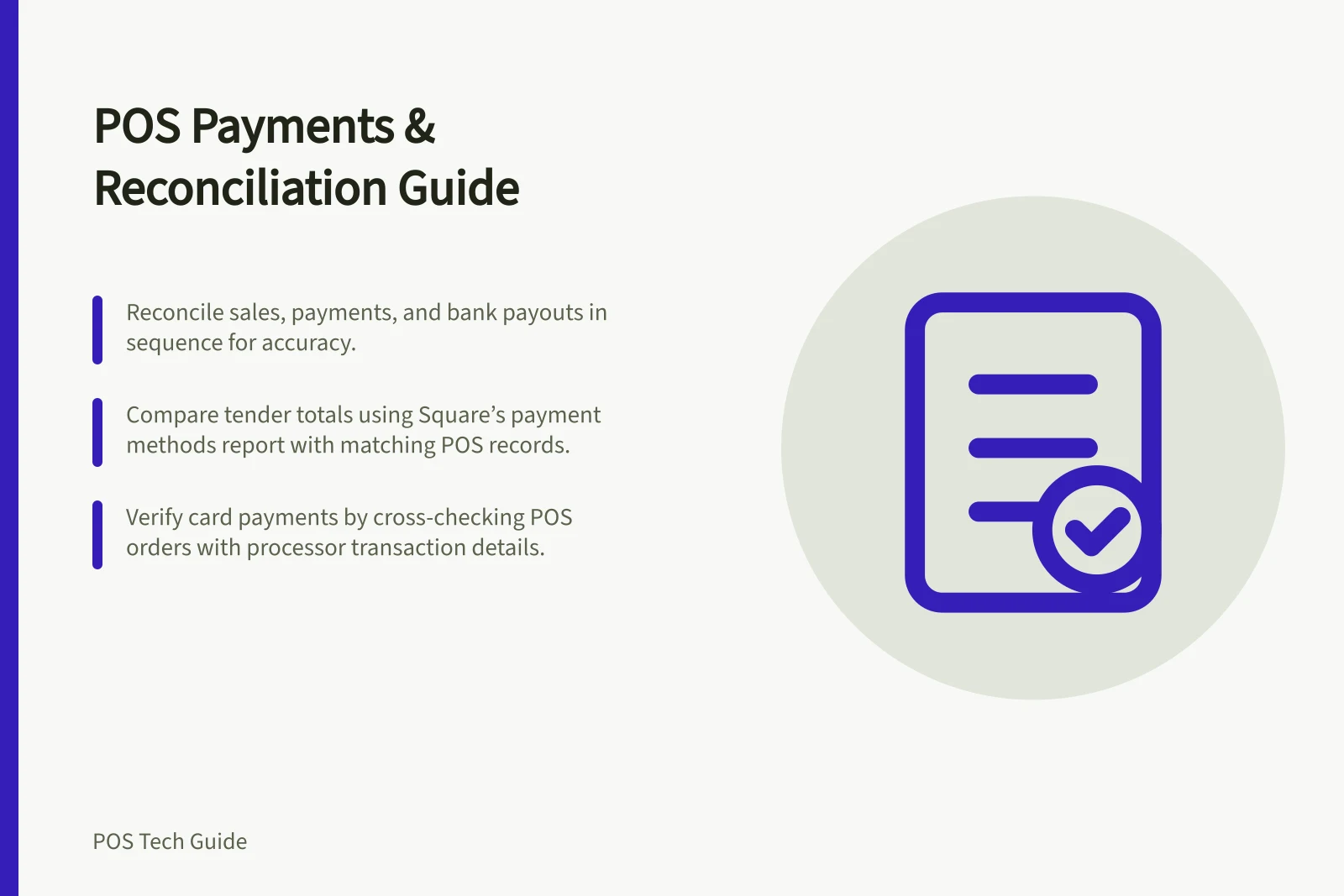
A POS sale, a payment and a bank payout describe different stages of a transaction. Reconcile them in that order: confirm how each sale was paid, check cash and card takings for the trading period, then trace processed card payments into a later payout.
Know which record answers the question
Question / Start with
- Was this sale paid?
- The POS sale and the matching payment transaction
- Is the cash drawer correct?
- The drawer session and a physical count
- Why does the bank amount differ?
- The processor’s transfer or payout breakdown
Use the same location and reporting window when comparing POS and payment records. Check what each total includes: a product sales figure may exclude amounts, such as tax or tips, that appear in payments collected. A refund processed today may relate to an earlier sale, and a payout can group payments from another window.
Compare payment totals by tender
Square’s payment methods report summarises the total collected and associated fees by tender type. Use it to compare payment-method totals with the records for the same trading period, keeping the fee amount visible as a separate part of the comparison. A tender summary helps explain a total; it does not replace checking an individual sale against its payment transaction.
Key reconciliation metrics by tender type (Square)
- Total collected (card)
- Refer to Square’s Payment Methods Report
- Fees (card)
- Visible in the same report; separate from collected amount
- Cash collected
- Recorded in drawer session; verify against physical count
Connect a card payment to its sale
For an external terminal, compare the POS order record with the processor’s transaction record when checking a card payment. For an uncertain charge, inspect both records before attempting another payment.
Follow authorisation through capture
For locations on the POS Pro plan, in-person card payments processed through Shopify Payments are authorised at the point of sale and captured after a delay of up to 15 minutes. During that window, the order shows as Authorised and a pending charge can appear on the customer’s card statement. If the order needs correcting during that period, it can be cancelled rather than refunded. After capture, changing the amount requires a refund.
Keep payment parts together
When a customer uses cash and card or two cards for one purchase, record the accepted parts against the same sale and check the remaining balance. If a part fails or the screen stops responding, verify that part’s processor status before retrying.
Limits vary by setup. Square’s Australian split-tender guidance requires the whole sale to be completed within five minutes; a timeout can void previously processed parts. It also excludes a split with a card part when Square Terminal is connected to Square Point of Sale.
Shopify POS supports multiple methods on an order and can retain a partially paid order for later collection, but a checkout containing a gift card product cannot be marked partially paid or unpaid.
Close cash, card and payout in sequence
Count the drawer against its opening float, recorded cash payments and refunds, and any cash added or removed. Record the actual count even if it differs from the expected balance. Square’s drawer-session feature requires its Cash Management Add-on; Shopify POS register-session cash counting must be enabled if staff are to record counts in that workflow.
Next, compare the POS card payment figure with completed processor transactions for the same window. Investigate unmatched payments, refunds and cut-off times.
Finally, use the processor’s payout details to match the included payments to their transactions, account for fees and other deductions shown, and check that the resulting payout amount agrees with the bank deposit. If it does not, review the payout’s listed items and timing for the difference.
Keep a close record showing the period, location, cash count, payment totals, transaction references and any unresolved difference with an owner.
Record cash movements as they happen
In a Square cash drawer session, record each cash movement when it happens, entering both the amount and a description. The session history then shows these movements alongside the drawer total. This gives the close a record of withdrawals and transfers, rather than leaving a difference between expected and counted cash without an explanation.
Use register sessions for defined shifts
Shopify recommends closing register sessions at regular intervals, such as when a store opens or closes, or when staff start or finish a shift. Only one session can be open at a time on each device, and sessions created on one device are not visible on another. If cash counts are required at both ends of a session, enable the cash-counting requirement in the register-session settings.
Distinguish ending a drawer from recording its count
Square distinguishes ending a drawer session from closing the drawer: ending the session is the action that stops it, while closing records the actual cash amount. If a session is ended remotely from Square Dashboard, cash additions or withdrawals can no longer be used to make an adjustment. Record any necessary cash movement before ending the session.
In this guide
- Matching terminal payments to POS salesMatch card-terminal transactions to POS sales, investigate paid and unpaid mismatches, and avoid duplicate charges.
- Handling split payments at the counterKeep split payments on one sale, track the balance and handle a failed part without accidentally charging twice.
- Reconciling end-of-day cash and card totalsUse a repeatable close to count cash, match card takings and explain why the later bank payout differs.