Multi-store Operations
Part of POS reporting
Reading Square sales reports by store and shift
A store total can hide a difficult shift, while a shift total can reflect a change in opening hours rather than staff performance.
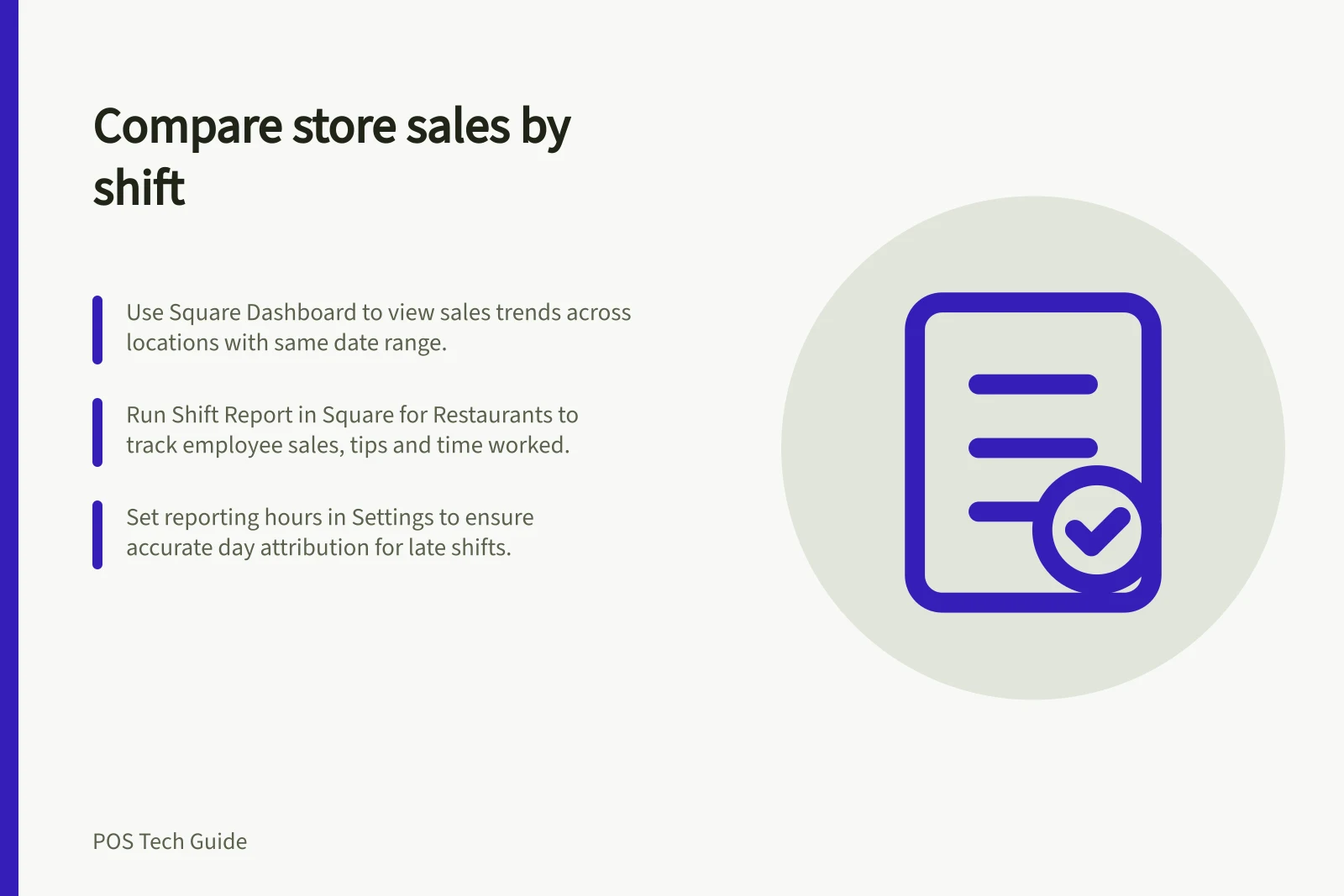
Use Square’s Sales summary and Sales trends for sales over a selected period, and the Square for Restaurants Shift Report for an employee’s shift. Check the location, date range, reporting day and employee before reading the figures.
Establish the unit of comparison
In Square Dashboard, open Reports and choose Sales summary or Sales trends. Use the Location filter to view a location; choose All Locations to include all locations. These reports cover sales for a selected period and compare daily, weekly and yearly sales.
In the point of sale app, only Sales summary is available. Sellers with reports permission can view a summary for the past 90 days, including tips and top-selling items. Square Dashboard provides full historical data, comparison charts and trends to sellers with detailed sales reporting permission.
To set reporting hours in Square Dashboard, go to Reports > Settings > Reporting timeframe. Set the time zone, start time and end time, then save. Use the date filter at the top of a report to override the default period.
The reporting start time determines which calendar day a sale is attributed to. A late shift can cross midnight without appearing on two business days. For a store comparison, use the same report and date range for each location.
Compare the right measures
Square for Restaurants’ Shift Report shows an employee’s shift details. It is available to Square for Restaurants Plus and Premium subscribers using full service, quick service or bar mode. An account owner or team member needs reports permission to run the close of day report.
In the Restaurant POS app, sign in with a personal passcode and tap Account, then Run Shift Report. Adjust tips, close open bills or declare cash tips first if needed. On Square Register, tap ≡ More > Run Shift Report; complete outstanding closing procedure tasks before running the report.
Shift Summary shows total time worked. Sales Summary shows total covers and the total dollar amount collected during the employee’s shift. Category Sales shows the number of items sold in each category, and Item Sales lists item sales.
Tip Details, Cash Sales, Non-Cash Tips, Cash Owed to You and Cash Owed to House provide further shift measures. Read the collected amount alongside time worked: a higher total after a longer shift does not by itself establish higher productivity.
If figures look low, payments may have been processed before the employee clocked in. Tap Edit Report to customise the time frame. Square Staff reporting also includes Team sales reports and Labour vs sales reports.
Sales Summary vs Shift Report: Key Differences in Square for Restaurants
- Report TypeSales Summary (Dashboard)
- ScopeAll locations or selected location over a period
- Time RangeCustom date range, up to full history with reporting permissions
- Key MetricsDaily, weekly, yearly sales trends; top-selling items; tips; total sales
- AccessSellers with reports permission (POS app); full access with detailed reporting permission (Dashboard)
- Report TypeShift Report (Restaurant POS)
- ScopeIndividual employee shift details
- Time RangeEmployee’s shift only (customisable via Edit Report)
- Key MetricsTotal time worked; covers; dollar amount collected; category and item sales; tip details; cash owed to you/house
- AccessAccount owner or team member with reports permission; requires Square for Restaurants Plus or Premium subscription
Key Performance Indicators in Shift Reports
- Total Time Worked
- Hours logged during shift
- Total Covers
- Number of transactions or customer servings
- Total Dollar Amount Collected
- Gross sales including tips
- Cash Owed to You
- Cash balance due to employee after shift
- Cash Owed to House
- Cash balance due to business after shift
How to Run a Shift Report in Square for Restaurants
- Sign in to Restaurant POSUse personal passcode on the device
- Access Account MenuTap Account > Run Shift Report
- Prepare for ClosingAdjust tips, close open bills, or declare cash tips if needed
- Generate ReportTap Run Shift Report to finalise and view results
- Review DataCheck total time, covers, sales, and tip details