Payments & Reconciliation
Part of POS reporting
Exporting POS data for accounting
A POS export becomes useful to accounting when someone can reproduce what it contains.
Export a Square report as a CSV in Square Dashboard, then prepare the file for the accounting ledger.
Set the reporting period and filters, choose which columns to include, and use the receiving ledger's import route.
Keep the report period, filters and column choice with the untouched export so you can reproduce it.
Choose the right report
Square's sales summary and sales trends reports provide an overview for a period and compare daily, weekly and yearly sales.
The payment methods report summarises total collected and associated fees by tender type. Use it when the ledger needs those tender totals and fees.
Sign in to Square Dashboard, open Reports, choose a report and set its relevant filters. Select the export icon, then the gear icon and either Export only selected columns or Export all columns in your view; all columns are selected by default. Click Start export to download the CSV.
The point of sale app provides access only to the sales summary report. Sellers with permission for detailed sales reporting can view full historical data in Square Dashboard; limited-reporting permission allows sales summary for the past 90 days in the app.
Square defines gross sales as product sales before refunds and discounts and excluding tax and tips; net sales are gross sales less refunds and discounts.
Square gift card sales are reported separately. Tax is calculated per transaction, and the specific tax for each sale appears in Transactions on Square Dashboard.
Tips exclude cash tips not recorded in the point of sale app; the Transactions list shows specific tips for card payments.
Square Sales Summary vs Payment Methods Report
- Sales Summary Report
- Overview of daily, weekly, yearly sales; useful for trend analysis
- Payment Methods Report
- Total collected and fees by tender type; essential for fee tracking
Key Definitions in Square Reporting (Australia)
- Gross Sales
- Product sales before refunds, discounts, tax, and tips
- Net Sales
- Gross sales minus refunds and discounts
- Tax Calculation
- Per transaction; specific tax shown in Transactions list
- Tips
- Excludes cash tips not recorded in the POS app
Control the export and handoff
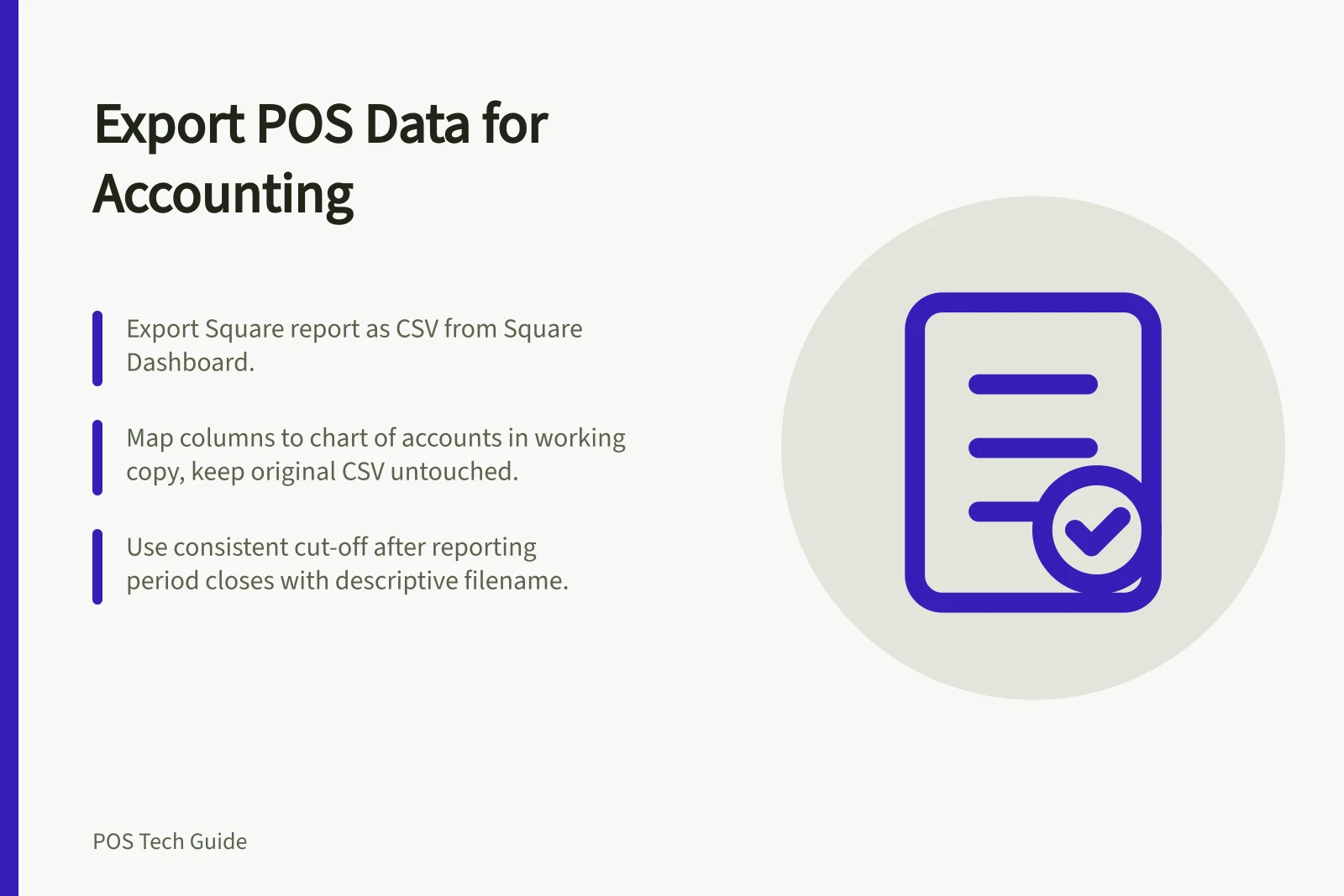
Keep the downloaded CSV unchanged. In a working copy, map the available columns to the appropriate accounts in the chart of accounts and record any transformations.
Confirm with the bookkeeper or accountant how refunds, fees, tax, tips and gift cards should be posted.
For a Xero manual-journal import, go to Accounting > Reports, search for and open Journal Report, select Go to Manual Journals, then Import. Keep the untouched Square CSV separate from any file prepared for import.
Export at a consistent cut-off after the reporting period closes. Use a descriptive filename and keep the period, filters and column choice with the CSV.
Check row counts and totals before and after import, and sample transactions across tender types and the period boundary. Record unresolved differences with an owner and due date.
Reconcile POS activity, payment settlement and accounting entries. Fees and timing can mean sales totals do not match bank deposits, so document the bridge rather than forcing unrelated dashboard numbers to agree.